Foreword: The idea for this compliance work and the writing of this article were suggested to me by Florian Kromer. A big thank you to him for drawing my attention to this crucial aspect of modern web development.
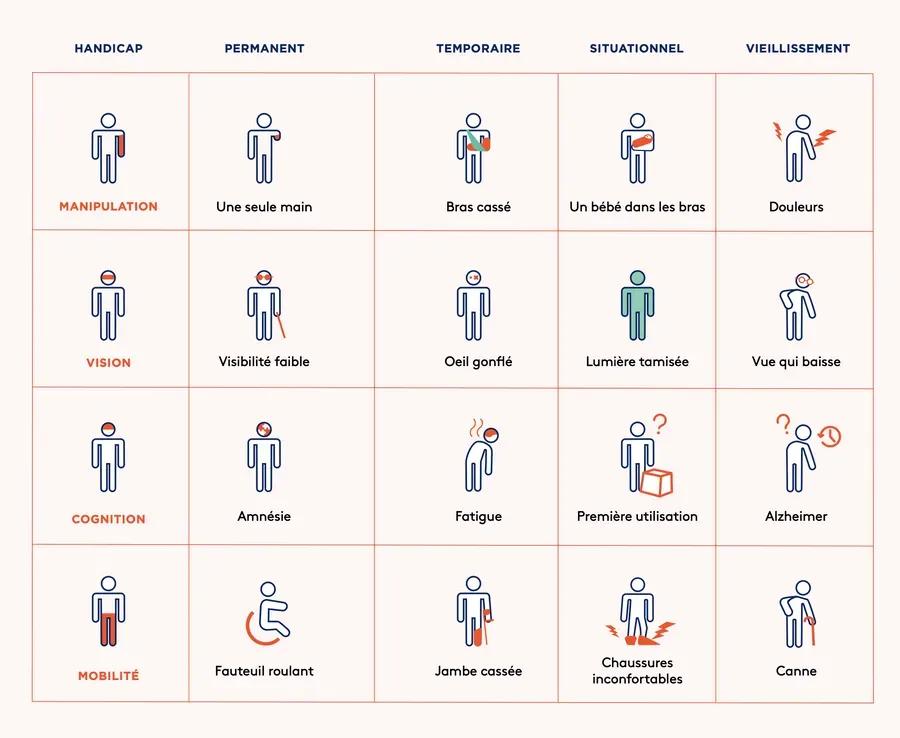
Web accessibility, often abbreviated as a11y (because there are 11 letters between the ‘a’ and the ‘y’), is frequently perceived as a technical constraint or a list of tedious administrative rules. However, it’s quite the opposite: it’s the art of ensuring your content can be browsed by everyone, regardless of how they navigate (mouse, keyboard, screen reader, or even a slow connection).
In this article, we will break down the pillars of accessibility based on the recent refactoring of this blog.
1. Vision: The 4.5:1 Contrast Ratio
The first barrier to reading is visual. If your text is light gray on a white background, you exclude not only visually impaired people but also any user reading your article on their smartphone in bright sunlight.
The Educational Concept
The contrast ratio measures the difference in luminance (perceived brightness) between the text color and its background color. The WCAG AA standard requires a minimum ratio of 4.5:1 for normal-sized text.
- 1:1 is white on white (invisible).
- 21:1 is black on white (maximum contrast).
How to test?
Open your browser inspector (F12), click on the small color square next to a CSS property: the browser will tell you directly if you pass the test with a green checkmark.
The Solution
Adjust your CSS variables. Don’t chase the “designer gray” at all costs; aim for readability.
/* In global.css */
--text-muted: #595959; /* The limit of gray on white to stay at 4.5:1 */
2. Navigation: The Keyboard as the Sole Guide
Some users cannot use a mouse (motor disability, faulty hardware). They navigate using the Tab key to jump from one interactive element to another.
The Educational Concept: The “Focus Ring”
The focus is that outline that appears around a link when you tab to it. Never remove it with an outline: none without providing a strong visual alternative. If the user doesn’t know where they are on the page, they are lost.
The Skip Link
On a blog, the header can be long. Imagine having to press Tab 10 times on every page change just to reach the beginning of the article. The solution: A hidden link that only appears on focus and points to the ID of your main content.
<a href="#main-content" class="skip-link">Skip to main content</a>3. Semantics: Talking to Machines (ARIA)
A screen reader (used by blind or visually impaired people) doesn’t “see” that your kebab menu is an icon of three bars. It needs the code to explain the role and state of the element.
ARIA Labels
If your button only contains an SVG, it’s mute to a machine.
- Clear example: A magnifying glass button must have an
aria-label="Search".
Dynamic State: aria-expanded
This is the crucial point for mobile menus.
- The principle: When the menu is closed, the button carries the
aria-expanded="false"attribute. - The action: As soon as the menu opens, your JavaScript must change this attribute to
true.
This allows the user to know instantly if their command was registered.
4. Structure: The Heading Hierarchy (Hn)
Using an <h3> because you find its font size “pretty” when there is no <h2> above it is a major semantic error.
Why is it important? Screen reading software can list all the headings on the page to understand the article’s outline. If levels are missing (jumping from H1 to H3), the perceived “outline” is inconsistent.
So what should you do?
- H1: Only one per page (the article’s title).
- H2: Your main sections.
- H3: Your subsections.
If you want to change the visual size, use CSS (e.g., .title-large), not the HTML tag.
Conclusion: Is my site accessible?
To find out, do these three simple tests right now:
- The Keyboard Test: Can you navigate your entire site and use all functions (search, dark mode) without touching your mouse?
- The Sun Test: Try reading your site with your screen brightness reduced by half. Is the text still readable?
- The Automated Tool: Use the Lighthouse tab (in Chrome) or the Axe DevTools extension. They will list your priority errors.
Accessibility is not a destination, it’s a journey. You never truly finish making a site accessible, but every small change concretely improves the life of a reader.